How to Unzip ZIP Files
Let’s dive right into your training and showing you how to…
Downloading Weekly Games
Each week you will receive an email just like the one you’re on right now!Inside these emails you will see the same layout starting with the big red ‘Download’ button that will download that week’s games, answer sheets and bonus rounds all in one, convenient zip file.
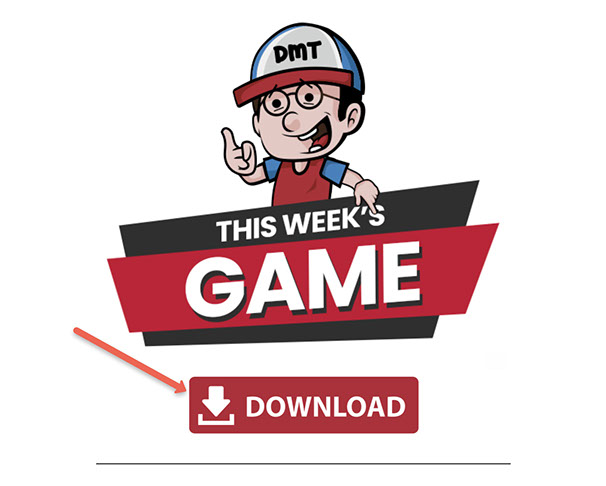
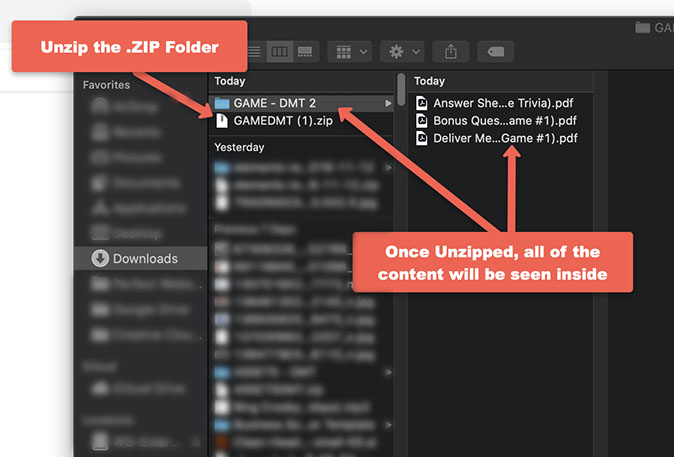
This file will be downloaded and all you need to do is simply unzip the file. Once unzipped, you will see the folder
A New Game Each Week!
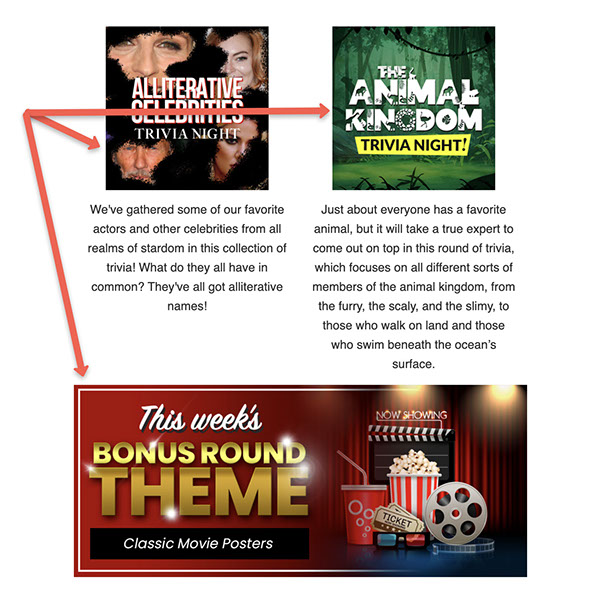
Inside this email, you will also be able to see your two themes each week as well as your bonus round!
These are located directly beneath the ‘download’ button.
Accessing the Partner Portal Downloading Weekly Assets
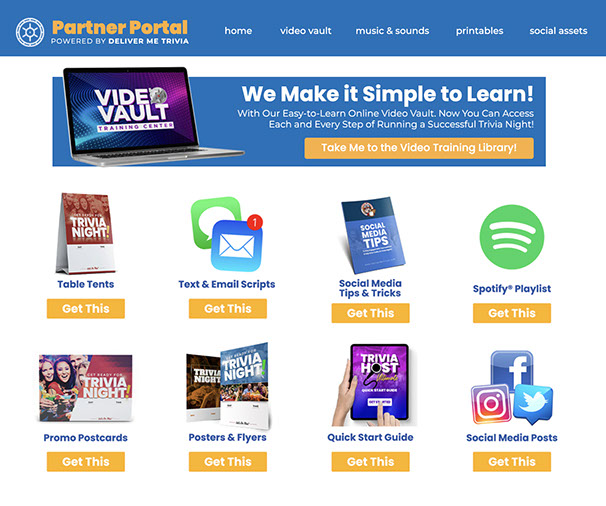
In addition to downloading the weekly games, you will also have instant access to our Partner Portal where you can find ALL of the download-able content to help you promote the trivia night to your followers!
Simply click on the ‘Partner Portal’ link (red circle) and you’ll get instantly directed there.
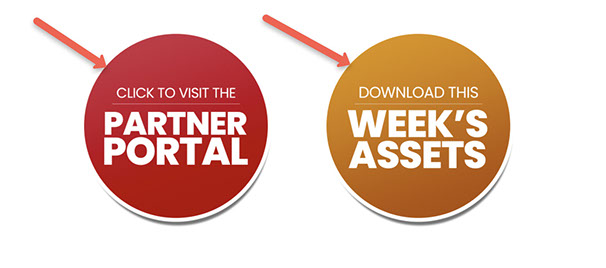
You will also want to download the weekly assets. These will include all the thumbnails you will use to promote that week’s trivia games and bonus rounds.
Downloading is just as easy as the games. Simply scroll down in the email until you see the round ‘Download Assets’ button and click on it.
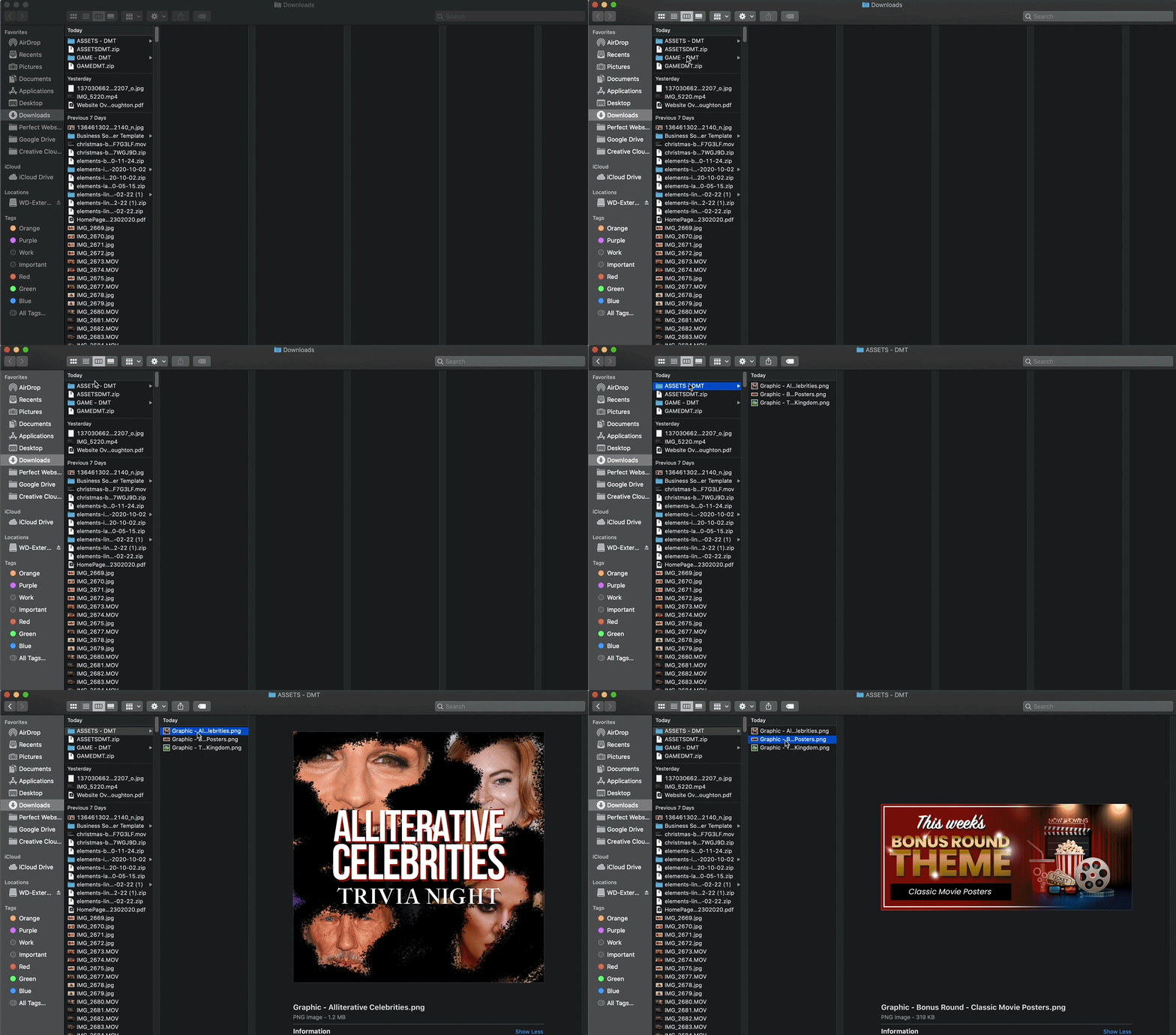
Once downloaded, you will want to double-click on the Zip file and unzip it. Again, you will see all of the images bundled together inside a folder.
Need Help? No problem. We’re a click away!
If at ANY point you get lost or need help, feel free to click on the support button and someone will be in touch with you within a few hours!
Downloading Games & Assets
Let’s dive right into your training and showing you how to…
Downloading Weekly Games
Each week you will receive an email just like the one you’re on right now!Inside these emails you will see the same layout starting with the big red ‘Download’ button that will download that week’s games, answer sheets and bonus rounds all in one, convenient zip file.
This file will be downloaded and all you need to do is simply unzip the file. Once unzipped, you will see the folder
A New Game Each Week!
Inside this email, you will also be able to see your two themes each week as well as your bonus round!
These are located directly beneath the ‘download’ button.
Accessing the Partner Portal Downloading Weekly Assets
In addition to downloading the weekly games, you will also have instant access to our Partner Portal where you can find ALL of the download-able content to help you promote the trivia night to your followers!
Simply click on the ‘Partner Portal’ link (red circle) and you’ll get instantly directed there.
You will also want to download the weekly assets. These will include all the thumbnails you will use to promote that week’s trivia games and bonus rounds.
Downloading is just as easy as the games. Simply scroll down in the email until you see the round ‘Download Assets’ button and click on it.
Once downloaded, you will want to double-click on the Zip file and unzip it. Again, you will see all of the images bundled together inside a folder.
Need Help? No problem. We’re a click away!
If at ANY point you get lost or need help, feel free to click on the support button and someone will be in touch with you within a few hours!
Posting and Scheduling Facebook Posts
Let’s dive right into your training and showing you how to…
It’s no secret that social media plays a HUGE role in helping you advertise your business! But you can also drive traffic to your trivia nights and not have to spend a DIME!
Nothing like saving some money huh?
Let’s look at how to create a simple and easy Facebook post along with creating a message, attaching a photo and even how to schedule it to help save you MORE time!
Step 1: Creating the Post
The first thing you want to make sure when posting is that you are inside your BUSINESS page and not your personal page. This might seem obvious but, you’d be surprised how many times it’s easy to forget and the next thing you know, your Uncle Bob wants to come over for Trivia Night!
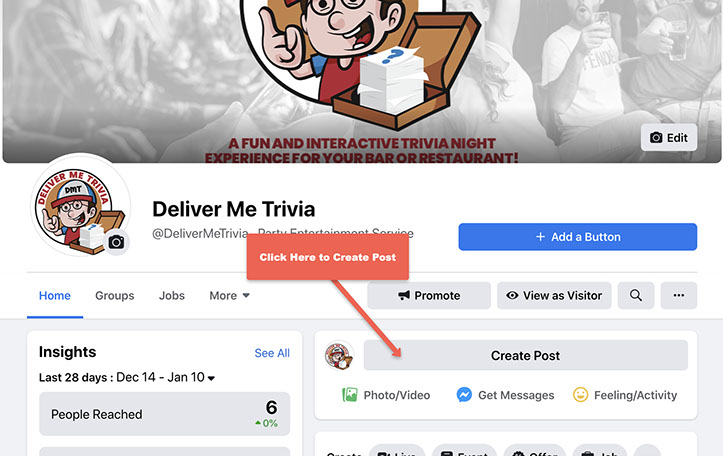
Next, click on ‘Create Post’….
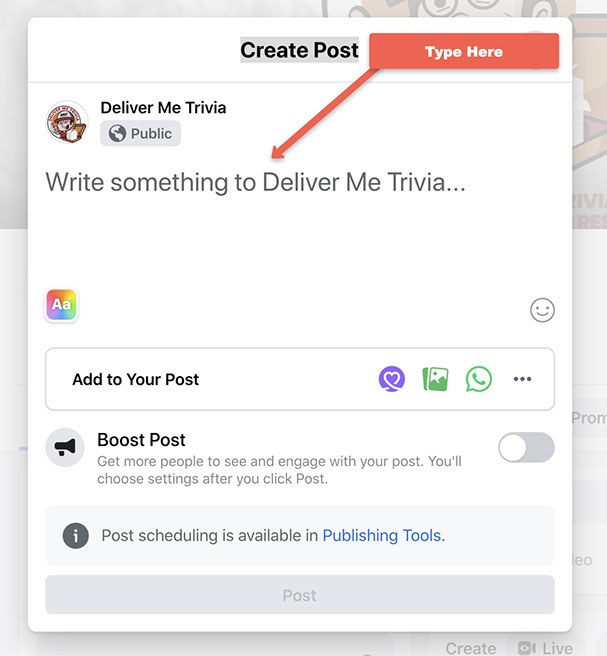
Next, write out your message you would like your followers to see. Try to keep it upbeat and fun and encourage people to tag, like or share the post so more people can see it!
After writing your message, you’ll want to also choose a nice image to attach with it! Adding photos can greatly help your post stand out and draw attention! You can easily add your own photo or, better yet, add one of the pre-designed images we’ve provided to you as part of your DeliverMeTrivia® membership!
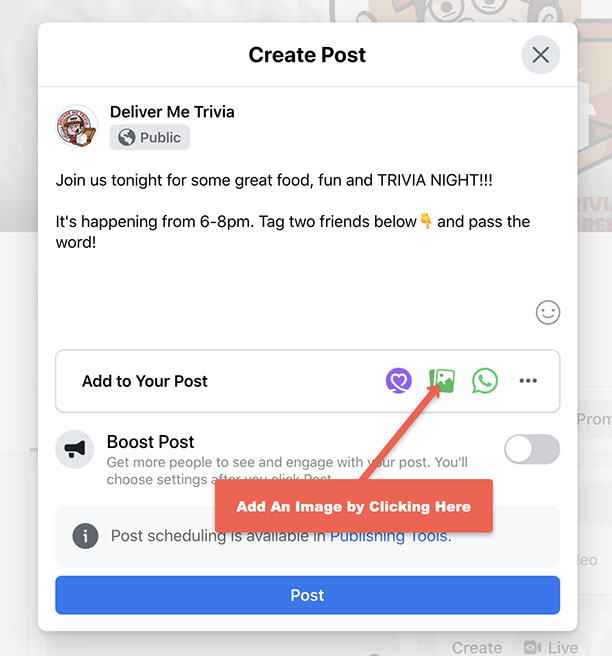
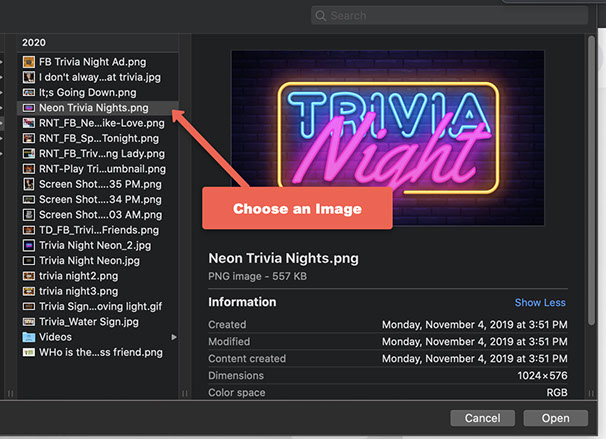
Simply click the photo icon and select an image from your computer or folder…
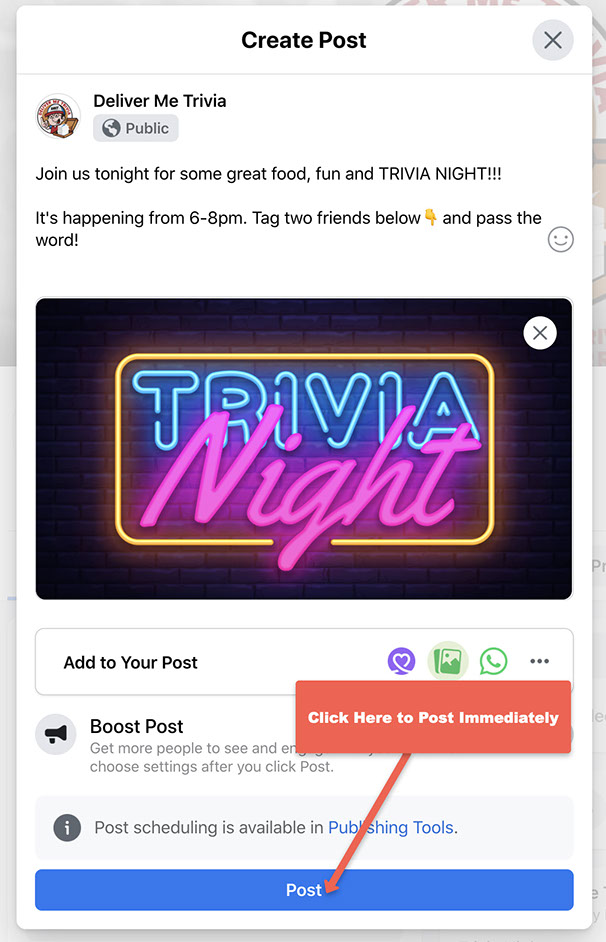
Once the image has been selected all that’s left to do is simply click the ‘Post’ button and BOOM! Your post is complete! Well done! ***Golf Clap***
Step 2: How to Schedule a Post
You can also choose to schedule a post to go out in the near future.
We recommend this option if you want to save time or if you happen to have a busy schedule later and would just like to get it out of the way!
To start, look for the ‘Publishing Tools’ option at the bottom of the ‘New Post’ window. Click on that.
Once the image has been selected all that’s left to do is simply click the ‘Post’ button and BOOM! Your post is complete! Well done! ***Golf Clap***
Need Help? No problem. We’re a click away!
If at ANY point you get lost or need help, feel free to click on the support button and someone will be in touch with you within a few hours!